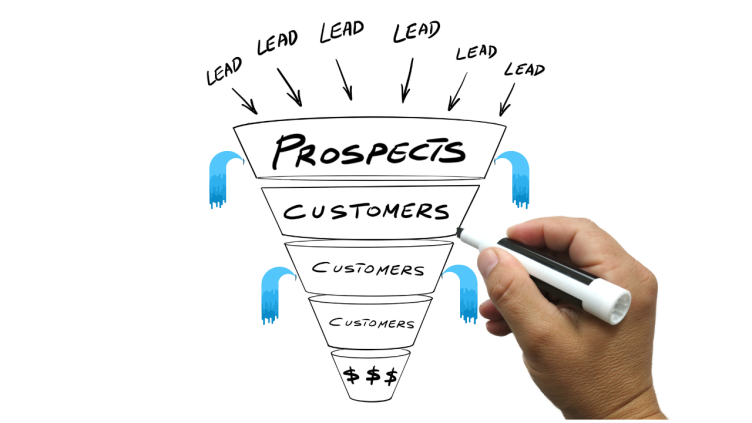
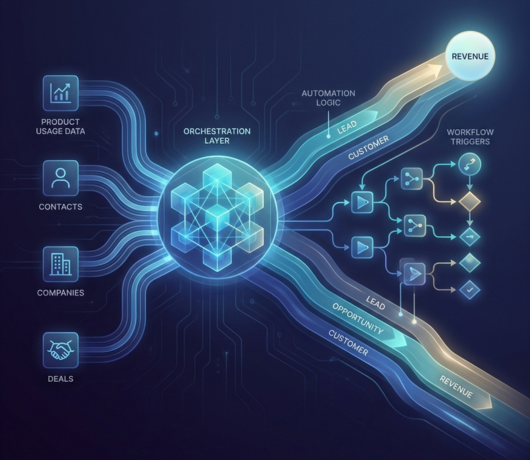
Pipeline velocity is slowing. Forecast calls feel like guesswork. Reps are stuck updating properties instead of closing deals. And every new GTM motion like new segment, new pricing tier, or new region, adds another layer of operational complexity. For RevOps, Sales Ops, and Marketing Ops leaders at scaling SaaS companies, the challenge isn’t ambition, it’s friction.
Manual pipeline management and generic automation setups create hidden drag across your revenue engine. Deals stall without triggers. Lifecycle stages fall out of sync. Handoffs break. Forecasting becomes reactive instead of predictive. The result? Leaked revenue, unreliable reporting, and frustrated teams who don’t trust the system they’re supposed to run on.
HubSpot workflow automation can solve this, but only if it’s designed for how SaaS actually sells. This article goes beyond standard HubSpot documentation to provide actionable, step-by-step examples of high-impact HubSpot automated deal pipeline workflows built specifically for the SaaS business model. You’ll learn how to operationalize pipeline velocity, enforce processes without micromanagement, and scale your GTM engine without scaling chaos.
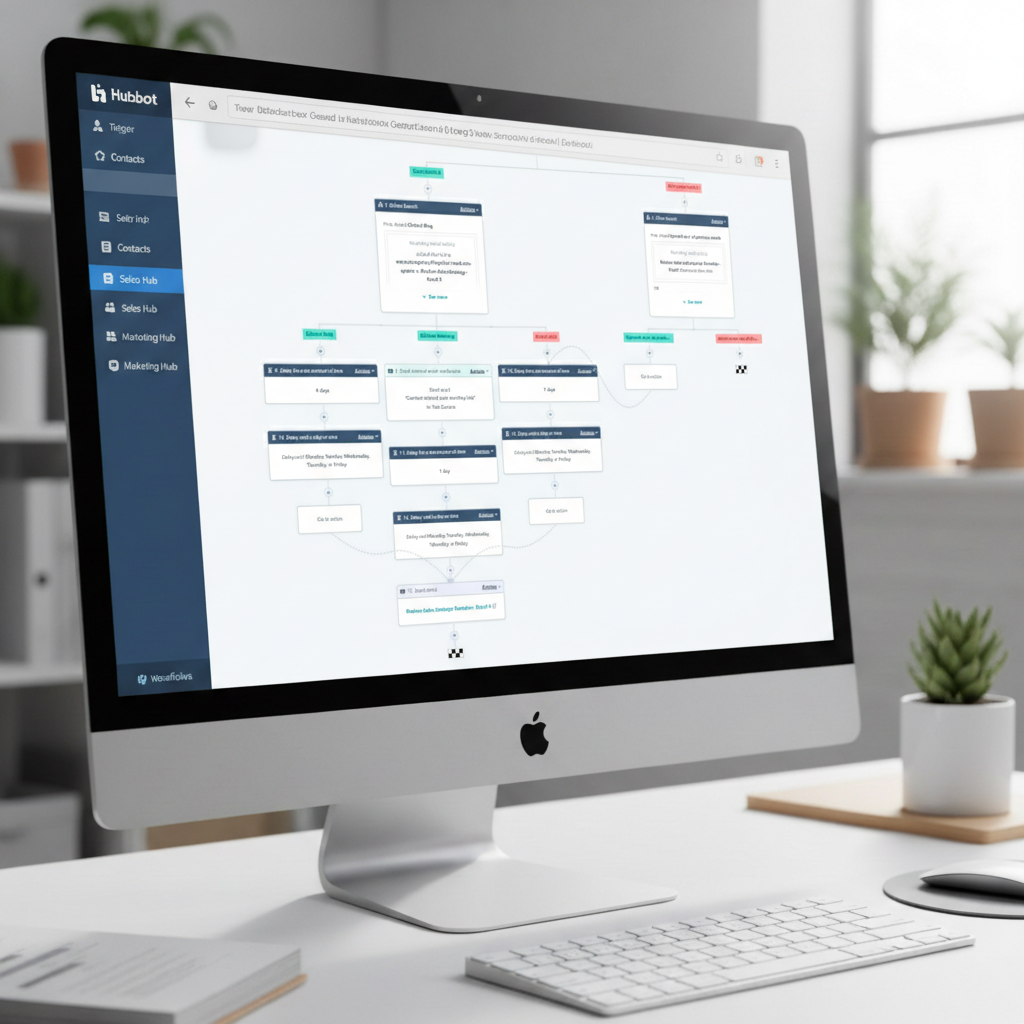
Why Standard Automation Fails at Scale (And What to Do About It)
Most scaling SaaS companies don’t suffer from a lack of automation. They suffer from the wrong kind of automation.
Out-of-the-box HubSpot workflow automation is designed to help teams get started quickly. But as pipeline complexity increases, multiple ICPs, self-serve + sales-assisted motions, expansion revenue, usage-based pricing, basic workflows start to break down.
Here’s what that looks like in practice:
-
Chaotic trial management
Trials are triggered, but not orchestrated. Marketing sends onboarding emails. Sales gets notified (sometimes). Product usage data lives somewhere else. There’s no structured logic for identifying Product-Qualified Leads (PQLs), escalating high-intent accounts, or recycling inactive users. The result: missed expansion opportunities and inconsistent conversion rates. -
Manual renewal and expansion processes
Customer Success teams manage renewals in spreadsheets or static pipelines. Renewal reminders are time-based, not risk-based. Expansion opportunities rely on CSM intuition instead of behavioral signals. Forecasting becomes reactive, and churn surprises leadership every quarter. -
Data silos between sales, CS, and product usage data
HubSpot tracks deals, lifecycle stages, and engagement, but product activity often lives in another system. Without structured workflows to ingest and act on product signals (logins, feature adoption, usage thresholds), your CRM becomes a historical record instead of a revenue command center.
The core issue isn’t automation, it’s shallow automation.
Standard Automation vs. Strategic Automation
Below is the gap most SaaS companies need to close:
Standard Automation
- Simple form submission → send follow-up email
- Deal created → assign to rep
- Lifecycle stage changes → notify owner
- Time-based renewal reminder (e.g., 90 days before close date)
- Static lead scoring based only on marketing engagement
Strategic Automation
- Trial signup → branch logic based on ICP, use case, and company size
- Product usage threshold hit → automatically create a PQL and alert Sales
- Low engagement during trial → trigger recovery sequence + task for SDR
- Renewal workflow that combines contract date + usage decline + support tickets
- Automated expansion pipeline creation when feature adoption crosses defined limits
- Multi-object workflows syncing Contacts, Companies, Deals, and custom objects
Standard automation saves time. Strategic automation drives revenue.
If your current HubSpot workflow automation setup only sends emails and assigns tasks, you’re operating below your revenue potential. The rest of this article will show you how to architect workflows that actively increase pipeline velocity, improve forecast accuracy, and reduce operational bottlenecks, specifically for SaaS business models.
The Foundation: How to Build a Basic Workflow in HubSpot
Before we design advanced, SaaS-specific automation, we need to establish the table stakes.
At a high level, every HubSpot workflow, no matter how complex, follows the same five-step structure:
- Navigate to Workflows (Automation → Workflows → Create workflow)
- Choose your creation method and primary object (Contact, Company, Deal, or Ticket)
- Set enrollment triggers (define when a record enters the workflow)
- Add actions and branching logic (define what happens next)
- Review, test, and publish
That’s the mechanical framework.
Now let’s break down the three foundational components that determine whether your HubSpot workflow automation becomes a scalable revenue system, or just another set of automated emails.
Choosing Your Method: From Scratch, Templates, or AI
When creating a workflow in HubSpot, you’ll typically choose between From scratch, Templates, or With AI. Each option supports a different level of complexity.
From Scratch (Maximum Control)
Best for: RevOps teams managing complex SaaS pipelines.
Pros:
- Full control over logic and branching
- Clean architecture with no hidden assumptions
- Easier to scale across multiple pipelines
Cons:
- Requires clear process mapping before building
For advanced workflow automation, particularly Hubspot automated deal pipeline workflows– From scratch is the preferred method. It ensures your automation mirrors your actual GTM model.
This is the method used in the advanced examples later in this guide.
Templates (Fast Setup)
Best for: Standard use cases and onboarding new team members.
Pros:
- Quick to launch
- Pre-built logic for common scenarios
Cons:
- Often too generic for SaaS complexity
- May not align with your lifecycle or revenue model
Templates are helpful starting points, but scaling SaaS companies typically outgrow them.
With AI (Accelerated Drafting)
Best for: Generating an initial workflow structure quickly.
Pros:
- Speeds up setup
- Helps translate ideas into logic
Cons:
- Requires careful review
- Doesn’t understand your revenue architecture
AI-generated workflows are drafts, not finished systems. Strategic automation always requires human design oversight.
Setting Enrollment Triggers: The “Who” and “When” of Your Automation
Enrollment triggers are the “if” statement of your workflow. They define the exact criteria a record must meet to begin automation.
Triggers can be based on:
- Contact, company, deal, or ticket properties
- Form submissions
- List membership
- Date-based conditions
- Synced product events
SaaS Examples
- Contact property: Trial Start Date is known
- Deal stage equals Demo Completed
- Company property: Plan Type = Pro
- Deal close date is within 90 days
- Product usage count exceeds a defined threshold
Clear trigger logic is critical. Poorly defined triggers lead to duplicate enrollments, incorrect deal updates, and unreliable reporting.
A Note on Re-Enrollment
Re-enrollment allows records to enter the workflow again if conditions are met multiple times.
For SaaS businesses, this is powerful:
- Restarted trials
- Re-qualified deals
- Expansion triggers
It’s also one of the most common sources of automation errors. We’ll revisit this in the When to Call an Expert section.
Adding Actions: The Core Building Blocks of Your Workflow
If triggers are the “if,” actions are the “then do this.”
Actions determine how your system responds once criteria are met. In SaaS automation, combining actions strategically is what turns a workflow into a revenue mechanism.
|
Category |
Action |
SaaS Use Case |
|
Data Management |
Set property value |
Mark account as PQL when usage threshold is met |
|
CRM Automation |
Create task |
Assign SDR when trial engagement spikes |
|
CRM Automation |
Create deal |
Open expansion deal when seat limit is reached |
|
Logic Control |
If/then branch |
Route Enterprise vs. SMB accounts differently |
|
Communications |
Send marketing email |
Trigger trial onboarding email when trial starts |
|
Communications |
Internal email |
Alert CSM to renewal risk |
|
Timing |
Delay |
Space out follow-ups logically |
For scaling SaaS teams, three actions are especially critical:
- Set property value → Keeps reporting and forecasting clean
- Create task → Drives rep accountability
- If/then branch → Introduces intelligence into automation
When structured intentionally, these actions transform HubSpot workflow automation from simple process automation into a scalable operational engine.
In the next section, we’ll apply these building blocks to real SaaS pipeline workflows designed to increase velocity, reduce churn, and secure recurring revenue.
3 High-Impact HubSpot Workflows to Automate Your SaaS Pipeline
This is where theory meets revenue. The following workflows are designed specifically for scaling SaaS companies, they tackle pipeline bottlenecks, reduce manual work, and ensure revenue doesn’t leak through process gaps. Unlike generic guides, these examples address real SaaS challenges like trial management, PQLs, and expansion deals.
Each workflow follows the same structure for clarity:
- The Business Goal – why this workflow matters
- The Workflow Logic – explained in plain English
- Step-by-Step Build Guide – actionable instructions you can replicate in HubSpot
- Pro Tip – a suggestion for advanced teams to supercharge automation
Example 1: Automatically Convert Product-Qualified Trials into Sales Opportunities
Business Goal
Increase trial-to-paid conversion velocity by automatically identifying Product-Qualified Leads (PQLs) and prompting sales to engage at the right moment.
Workflow Logic (Plain English)
- Trial Starts → A custom property such as Trial Status updates to Active.
- Engagement Is Tracked → The system monitors activation milestones that signal meaningful product usage (e.g., inviting teammates or repeatedly using a core feature).
- PQL Threshold Is Reached → When predefined Product-Qualified Lead (PQL) criteria are met, the contact is marked as Product Qualified.
- Sales Is Prompted to Engage → The system notifies the sales team and assigns a follow-up task, prompting outreach while the user is actively engaged.
- Sales Qualification Occurs → If outreach results in a scheduled demo or product evaluation, a deal is automatically created in the pipeline.
- Opportunity Is Created → Upon deal creation, the contact’s Lifecycle Stage updates to Opportunity, and the deal progresses through the sales pipeline.
Process Flow
Trial → PQL → Sales Outreach → Demo Scheduled → Deal Created → Opportunity
Step by Step Guide
-
Create a Contact-Based Workflow
-
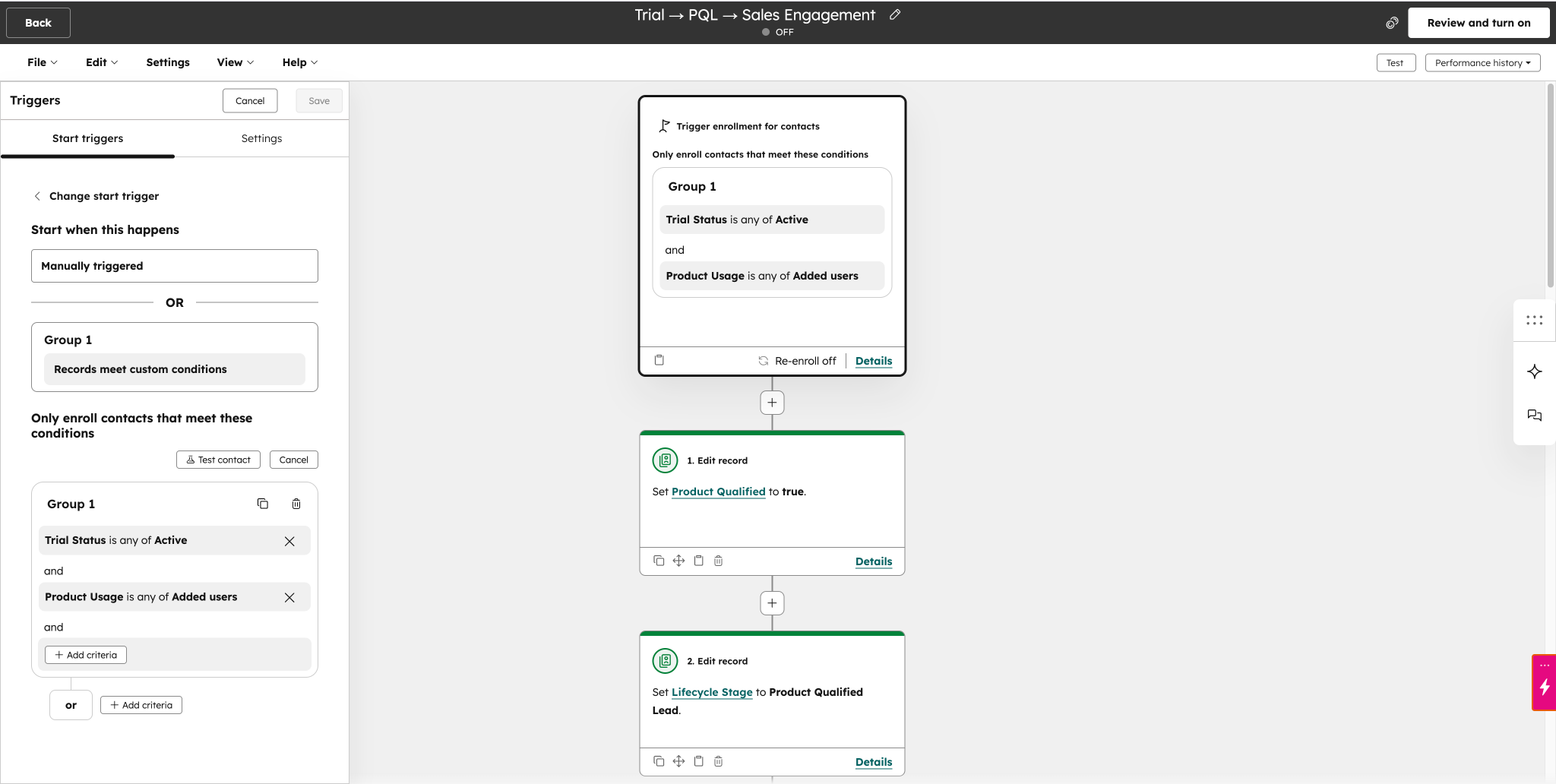
Go to: Automation → Workflows → Create workflow → Contact-based → From scratch
-
Name it: Trial → PQL → Sales Engagement
-
Set Enrollment Triggers
- Trigger: Trial Status = Active
AND
PQL criteria met (e.g., PQL Score ≥ threshold OR custom event milestone reached) - Enable re-enrollment if PQL status can change dynamically.
-
Add Actions
- Action 1: Set property → Product Qualified = True
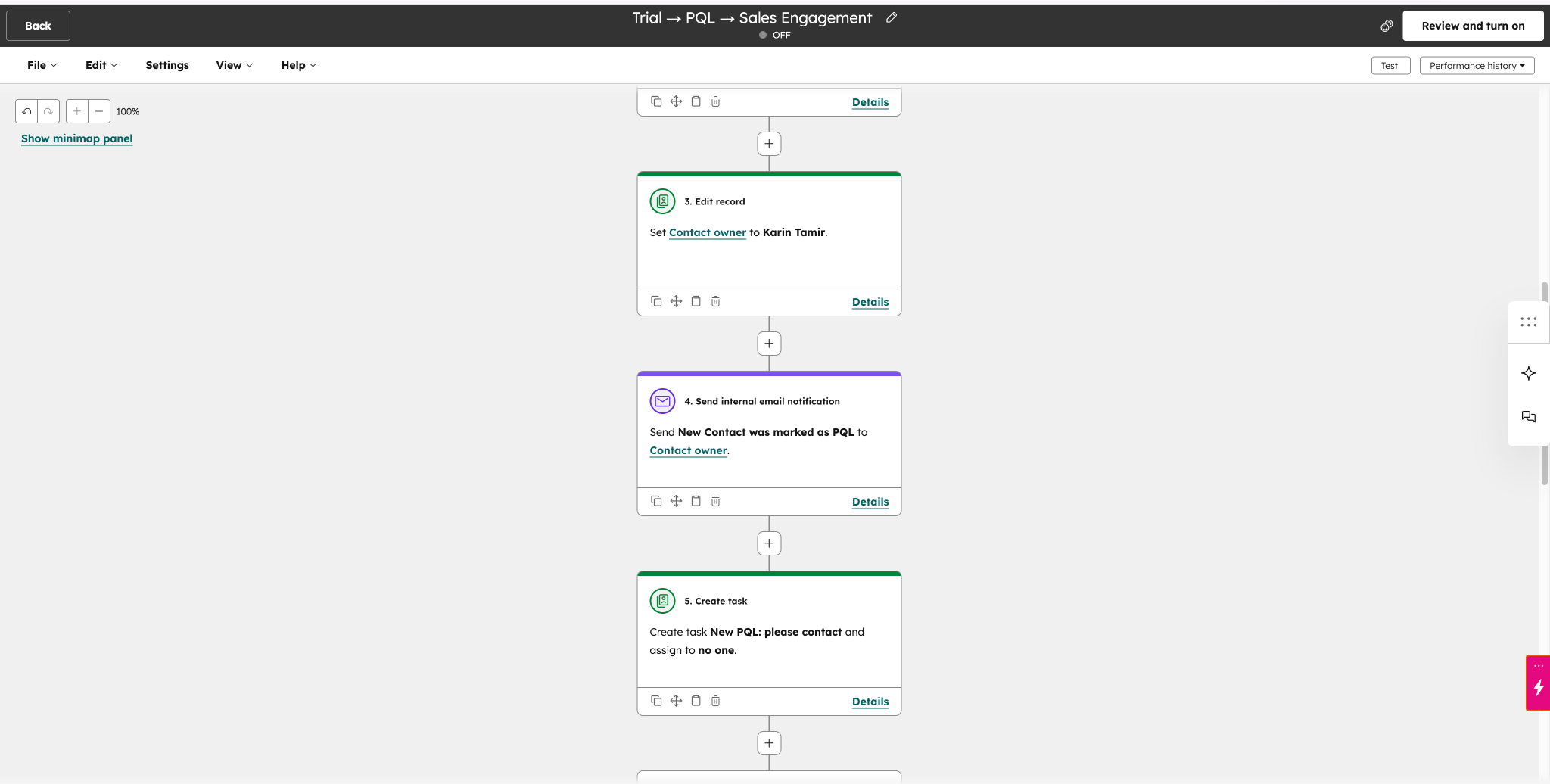
- Action 2: Create task → Assign to contact owner
Task: Follow up with PQL - Action 3 (Optional): Send internal notification to sales manager
-
Conditional Deal Creation
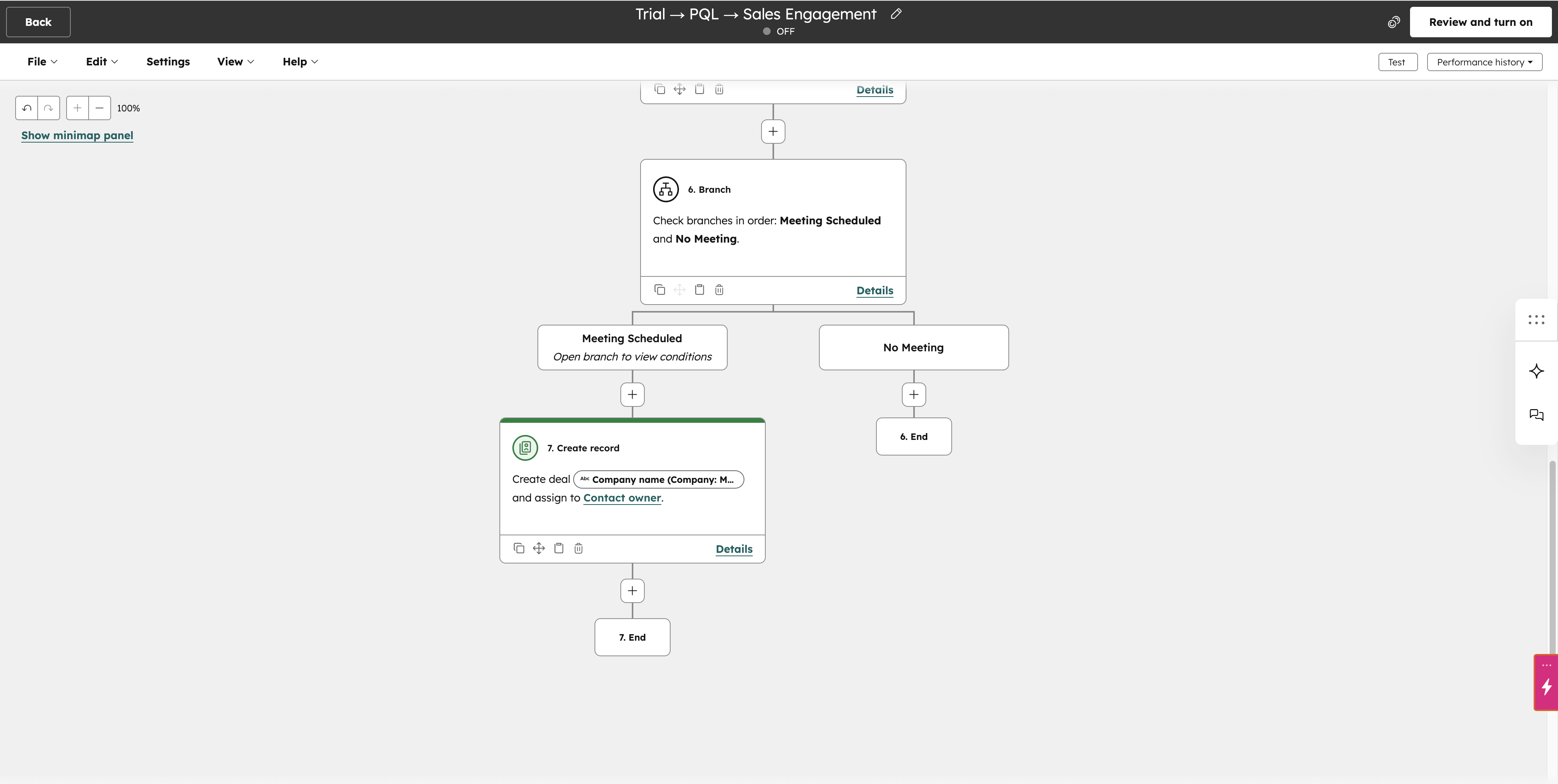
- Add If/Then Branch: If meeting outcome = Demo Scheduled (or sales qualification confirmed) → Create Deal in pipeline
- Set Deal Stage = Sales Qualified (or your equivalent stage)
-
Update Lifecycle Stage
- After deal creation: Set Lifecycle Stage → Opportunity
-
Test & Activate
- Enroll test contacts
Verify: - PQL property updates
- Task creation
- Deal creation only occurs after qualification
- Lifecycle stage updates correctly
Example 2: Proactive Churn-Risk Notifications Using Product Data
Business Goal:
Reduce customer churn by identifying at-risk accounts from declining product usage and proactively alerting the Customer Success Manager (CSM).
Workflow Logic (Plain English):
- Check active customers regularly (Lifecycle Stage = Customer).
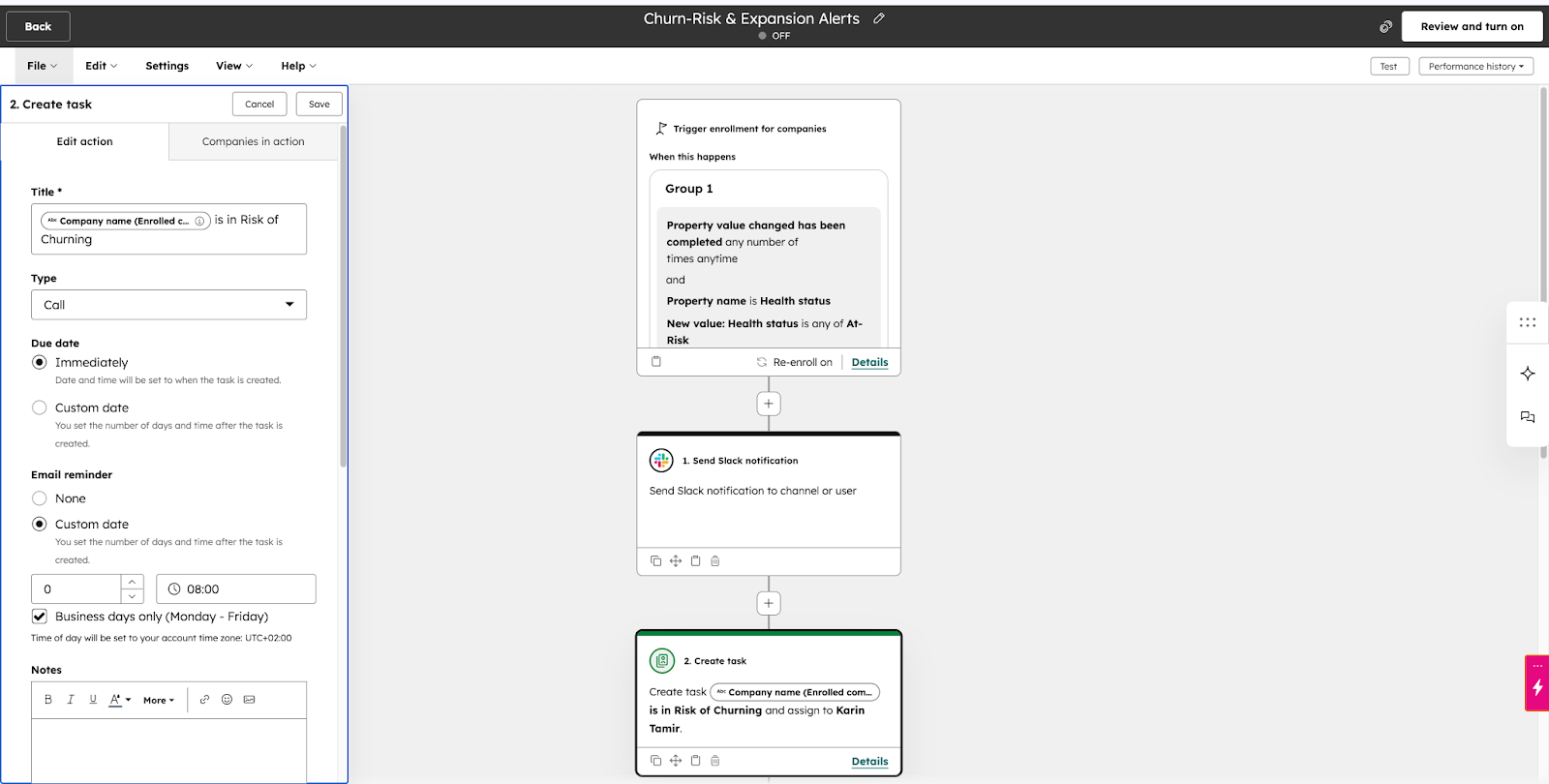
- If the customer’s Health Score updates to “At risk,” the system triggers an alert.
- Send internal Slack/email notifications to the CSM and create a follow-up task.
- Optionally, detect “power users” whose usage spikes suddenly and trigger an alert for potential expansion.
Step-by-Step Build Guide:
-
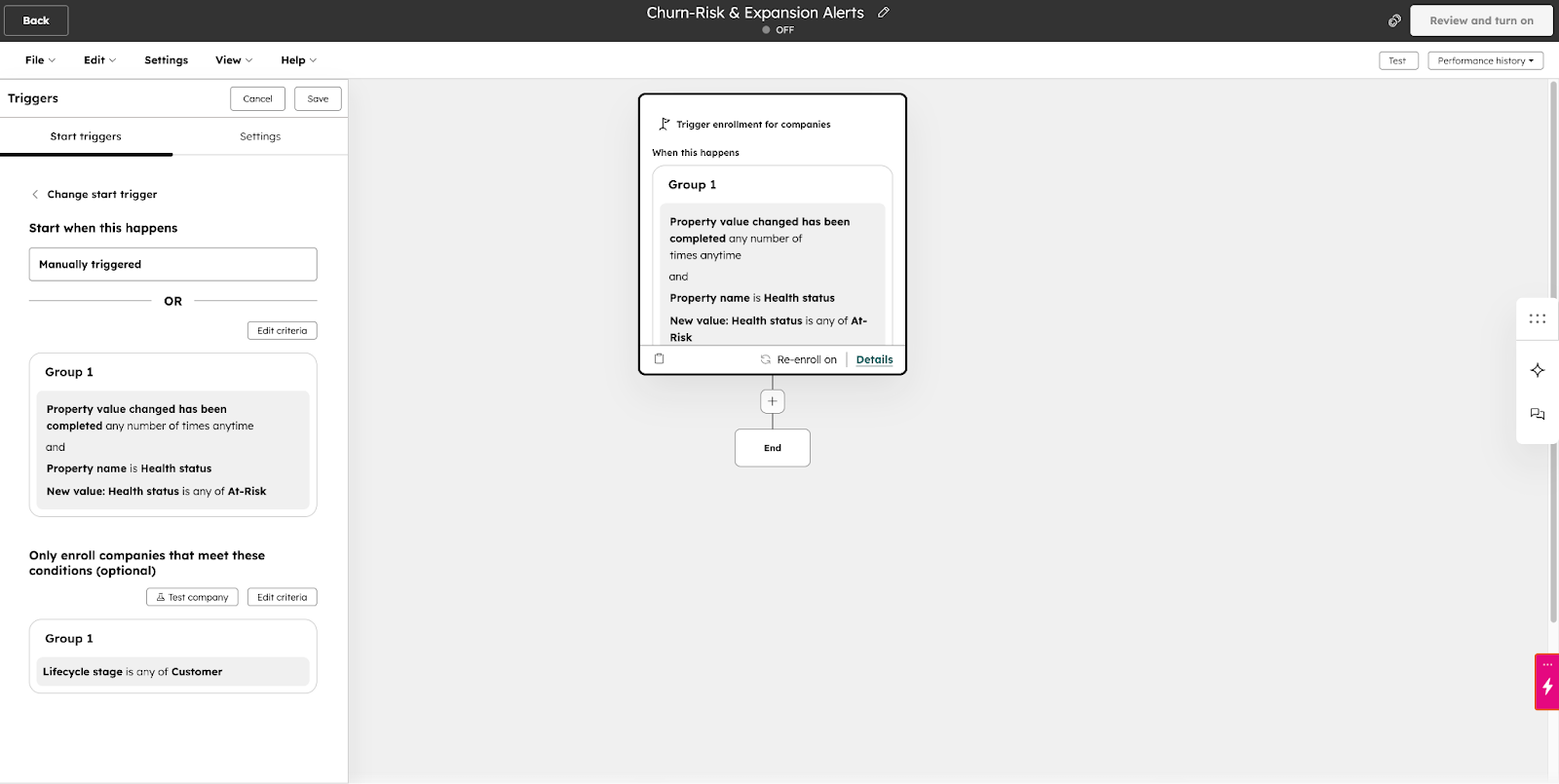
Create a Company-Based Workflow
- Go to Automation → Workflows → Create workflow → Company-based → From scratch
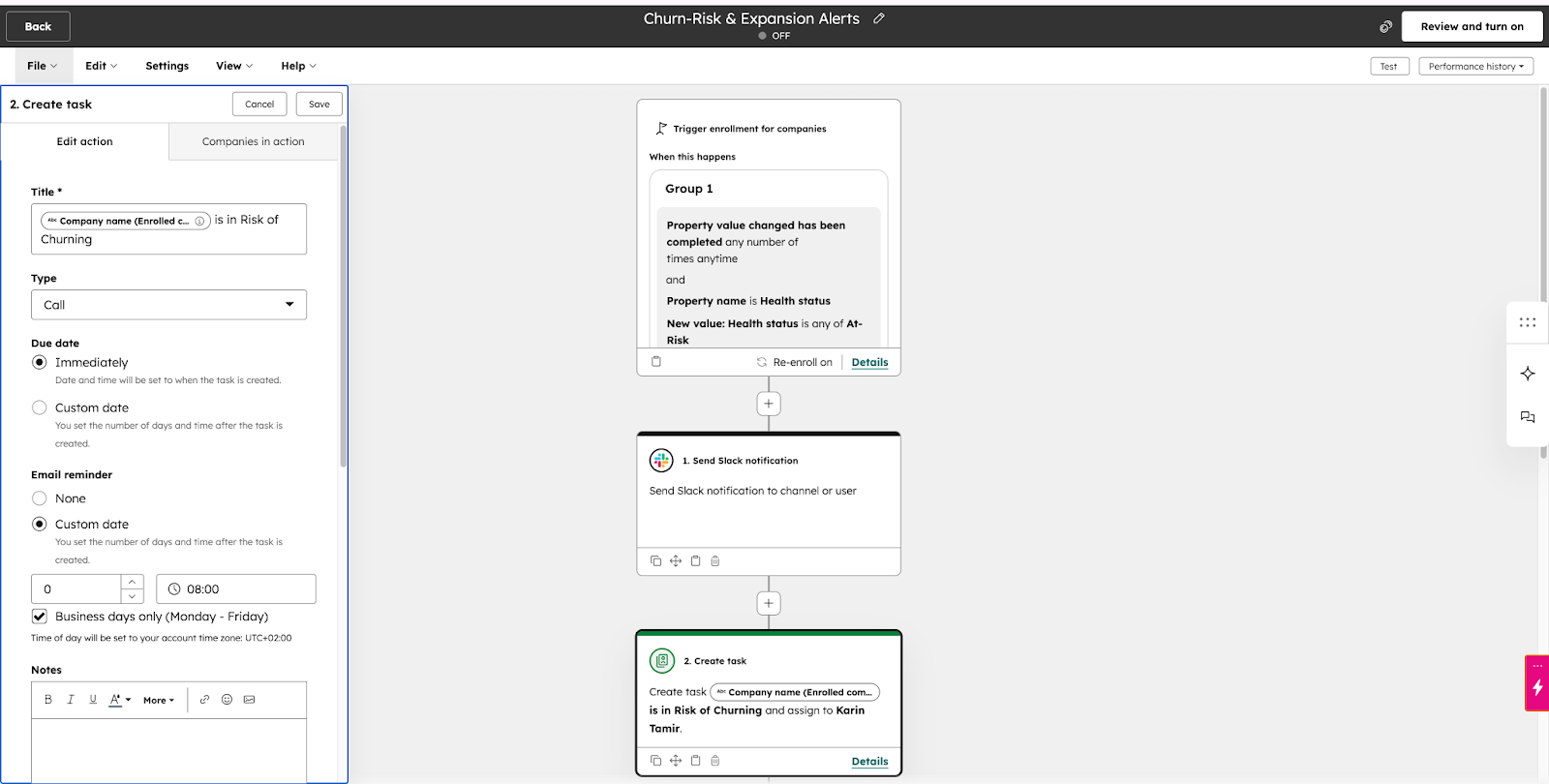
- Name: Churn-Risk & Expansion Alerts
-
Set Enrollment Triggers
- Trigger: Lifecycle Stage = Customer
- Optional re-enrollment: when product usage drops again
-
Add Delay & Branch Logic
- Add a delay (e.g., check weekly or monthly)
- If/Then branch: Product Usage < Healthy Threshold → trigger alert
- Else branch: No action
-
Add Actions
- Send internal email or Slack message to CSM
- Create task: Investigate churn risk
- Optional branch: Detect spike in usage → notify CSM of potential expansion
Pro Tip:
Use a custom property for usage trends or “churn score” that combines multiple product signals. This allows more sophisticated triggers and better prioritization for CSM follow-ups.
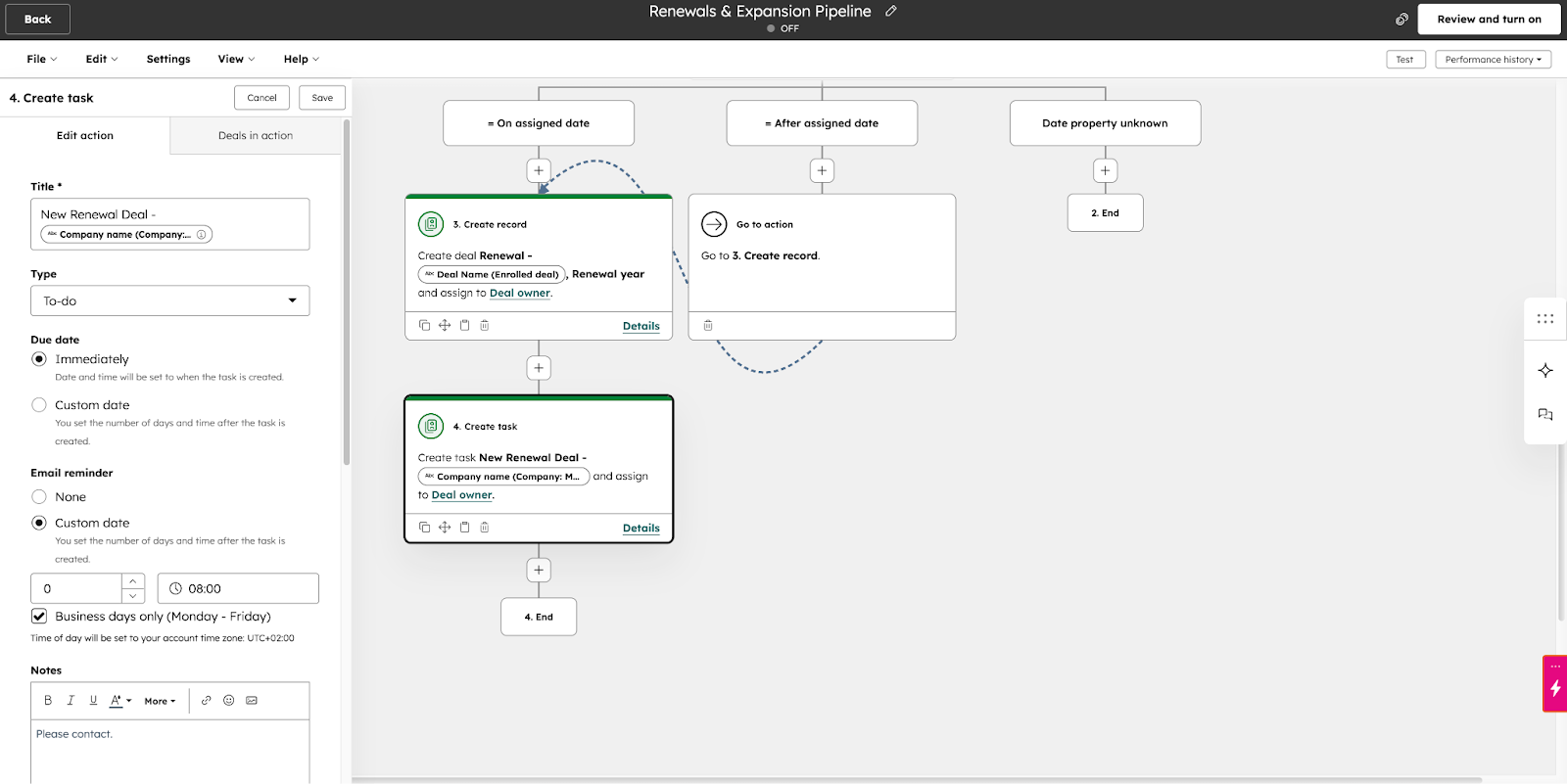
Example 3: Streamline Subscription Renewals and Expansion Opportunities
Business Goal:
Secure recurring revenue and identify upsell opportunities by automating renewal management.
Workflow Logic (Plain English):
- Trigger workflow 90 days before a deal’s Renewal Date.
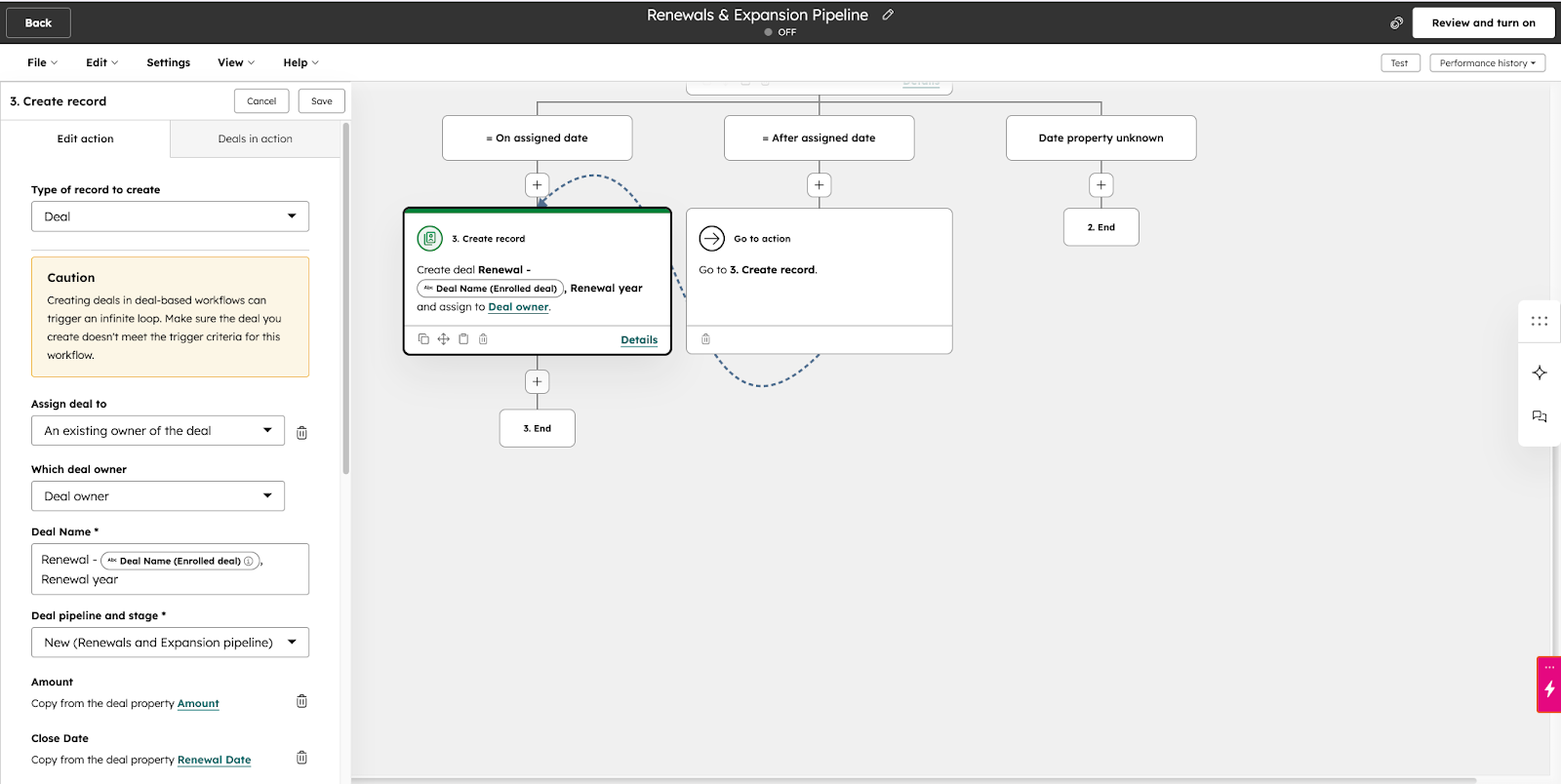
- Automatically create a renewal deal in the pipeline.
- Assign tasks to the account manager at 90, 60, and 30-day intervals.
- Send internal notifications to ensure timely follow-up.
- Optionally, check if the customer is nearing plan limits to prompt an upsell discussion.
Step-by-Step Build Guide:
-
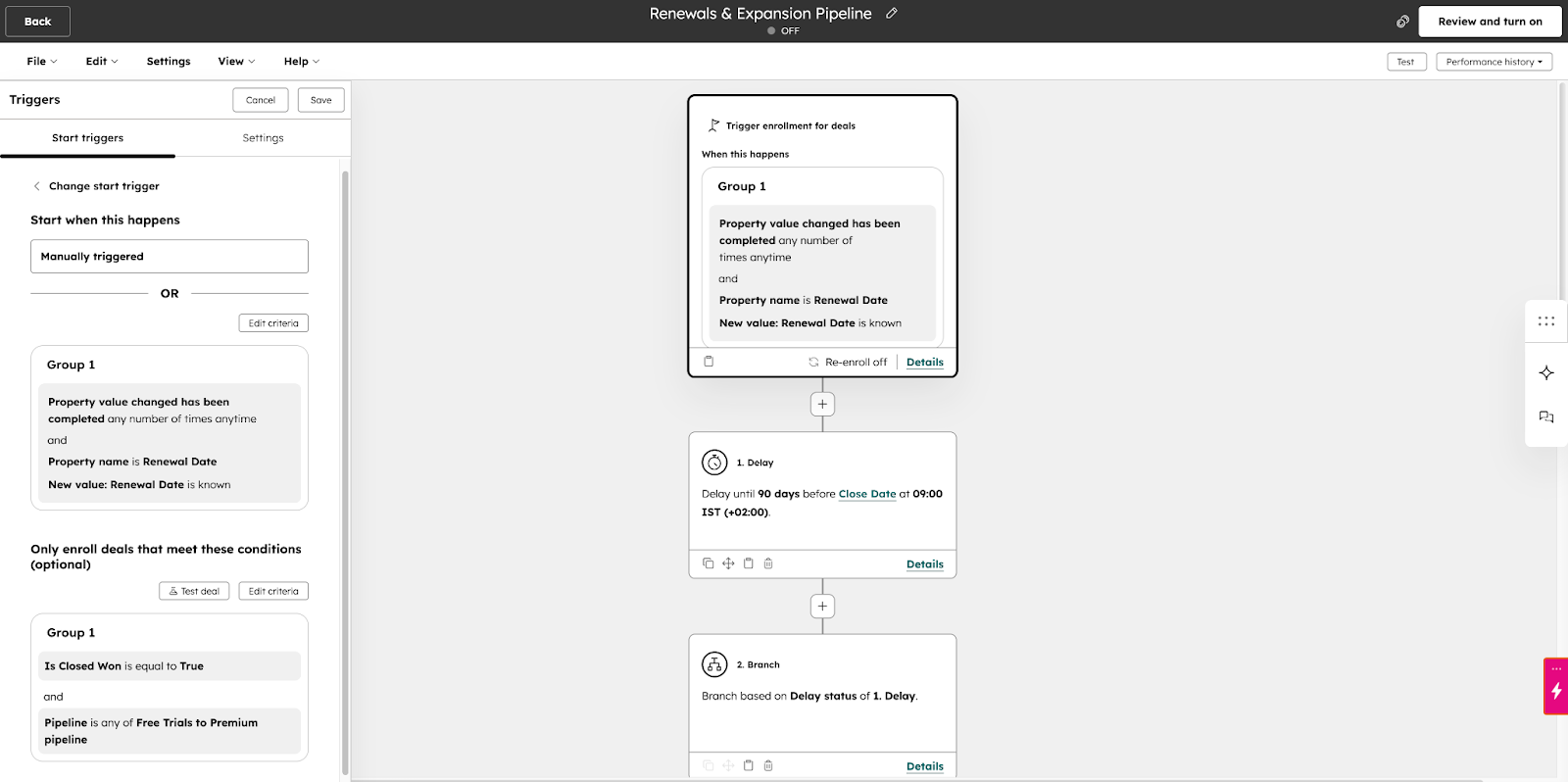
Create a Deal-Based Workflow
- Automation → Workflows → Create workflow → Deal-based → From scratch
- Name: Renewals & Expansion Pipeline
-
Set Enrollment Trigger
- Trigger: Deal property Renewal Date is 90 days from today
-
Add Actions
- Create a renewal deal in the pipeline
- Create task: Follow up at 90, 60, 30-day intervals (use Delay action between tasks)
- Send internal reminder emails to the account manager
- Add Optional Branch
- If customer usage ≥ 80% of plan limits → add instruction to discuss upgrade
Pro Tip:
Add a custom usage property to compare against plan limits. This creates a data-driven renewal workflow that surfaces upsell opportunities automatically.
When to Call an Expert: Signs Your Workflows Are Hitting a Complexity Wall
Even experienced RevOps leaders eventually hit the limits of DIY HubSpot workflow automation. What starts as a clean, logical system can slowly turn into a fragile web of dependencies, edge cases, and reporting inconsistencies.
Use this checklist as a diagnostic tool:
✅ Your workflows have more branches than a family tree
If every new segment, exception, or pricing tier adds another if/then branch, your automation may be compensating for process gaps. Highly nested logic increases the risk of conflicts, skipped actions, and hard-to-diagnose errors, especially across multiple pipelines.
✅ You spend more time debugging than building
When updating one workflow breaks another, when re-enrollment rules create duplicate tasks, when deal stages change unexpectedly – your system is no longer scalable. If troubleshooting consumes more time than optimization, complexity has outpaced architecture.
✅ You need to trigger workflows from data outside of HubSpot
Modern SaaS growth relies on product signals: feature adoption, seat utilization, login frequency, usage thresholds. If your most important triggers live in Amplitude, Mixpanel, your data warehouse, or internal databases, and syncing them feels fragile or manual, you’ve reached integration-level automation.
✅ Reports don’t match reality
Forecast numbers feel “off.” Lifecycle stages drift. Sales doesn’t trust pipeline reports. Customer Success manages renewals in spreadsheets “just in case.” These are signs your workflows are updating properties inconsistently or not at all.
✅ Workflow failures affect revenue forecasting
When automation errors directly impact deal stages, renewal tracking, or expansion identification, the cost is no longer operational, it’s financial. At this stage, automation design becomes a revenue risk issue, not just a CRM configuration issue.
If these challenges sound familiar, it's a strong signal that partnering with a RevOps specialist could unlock the next level of growth.
The Contact vs. Deal-Based Logic Challenge
A classic HubSpot issue: contacts can have multiple deals. Triggering a specific deal update from a contact-level action (like an email click) is risky and often fails.
Real-world examples from the HubSpot community:
- Automated tasks updating the wrong deal
- Duplicate workflows creating conflicting deal actions
- Re-enrollment triggering multiple deals unintentionally
Workarounds:
- Use custom properties to track active deals
- Limit triggers to deal-based workflows
- Employ if/then logic at the deal level
These are temporary fixes. For scalable SaaS operations, expert workflow design is required.
Integrating with Your Tech Stack (APIs & Custom Objects)
The most powerful SaaS workflows rely on external data, especially product usage metrics.
- Sync product analytics (Amplitude, Mixpanel, internal DBs) via APIs or middleware into HubSpot.
- Map data to custom properties or objects for actionable triggers.
- This integration enables workflows like Proactive Churn-Risk Alerts, connecting real-time usage trends to deal and account management.
By bridging HubSpot with product data, you can move beyond generic automation into strategic, revenue-driving workflows – a key service we provide for scaling SaaS companies.
Go Beyond Automation, Build a Revenue Engine
Strategic HubSpot workflow automation isn’t just about saving clicks, it’s about building a predictable, scalable system that actively drives revenue.
From understanding the foundational workflow mechanics to designing high-impact, SaaS-specific pipelines, you’ve seen how automation can:
- Accelerate trial-to-paid conversions
- Reduce churn through proactive alerts
- Ensure renewals and expansion opportunities never slip through the cracks
The difference between basic automation and a revenue engine is intentional design, data integration, and strategic execution.
Ready to transform your HubSpot instance from a simple CRM into a powerful revenue engine? Schedule a free, no-obligation strategy session with our Rev-Ops experts today.
Frequently Asked Questions
What is HubSpot workflow automation?
HubSpot Workflows are the platform’s primary automation engine for marketing, sales, and service processes. They use “if/then” logic, enrolling records based on specific triggers (like form submissions, property updates, or product events) and then executing a series of actions (tasks, emails, deal updates, and more).
Unlike basic automation, such as simple email follow-ups, HubSpot workflows can handle complex branching, multi-object logic, and conditional sequences, making them essential for scaling SaaS operations.
Can workflows automatically move deals through a SaaS sales pipeline?
Yes. This is a core function for scaling SaaS sales teams.
A deal-based workflow can automatically update the Deal Stage property when defined criteria are met, such as a trial user hitting a product activation milestone or reaching a usage threshold.
For detailed, step-by-step guidance, see the high-impact workflow examples earlier in this article, like Automatically Move Deals from “Free Trial” to “Sales Qualified.”
What’s the difference between a contact-based and a deal-based workflow?
The primary distinction lies in the workflow’s object of focus:
- Contact-based workflows enroll and act on contacts (leads or trial users).
- Deal-based workflows enroll and act on deals (pipeline stages, renewals, expansion deals).
For SaaS companies, a single contact can be linked to multiple deals, initial sales, renewals, or upsells. Updating the correct deal from a contact-level action is tricky and a common reason to call in an expert, as discussed in the “When to Call an Expert” section.
Do I need a specific HubSpot subscription to use workflows?
The full-featured Workflows tool, including complex branching and multi-object logic, is available on Professional and Enterprise tiers of HubSpot Hubs (Sales Hub Pro, Marketing Hub Pro, etc.).
Basic automation exists on lower tiers, but the strategic SaaS pipeline automation covered in this guide requires a Professional subscription or higher. Always check your current plan to confirm access.
Can HubSpot workflows be triggered by data from my own product?
Yes, and this is crucial for advanced SaaS automation.
You can integrate your product data (from tools like Segment, Amplitude, Mixpanel, or your own data warehouse) into HubSpot custom properties. Workflows can then be triggered by these signals.
Example: Trigger a churn-risk workflow when a customer’s “Product Logins Last 30 Days” property drops below a defined threshold.
This kind of integration allows automation to act on real, behavioral signals, not just CRM properties, and often requires expert implementation for accuracy and scale.