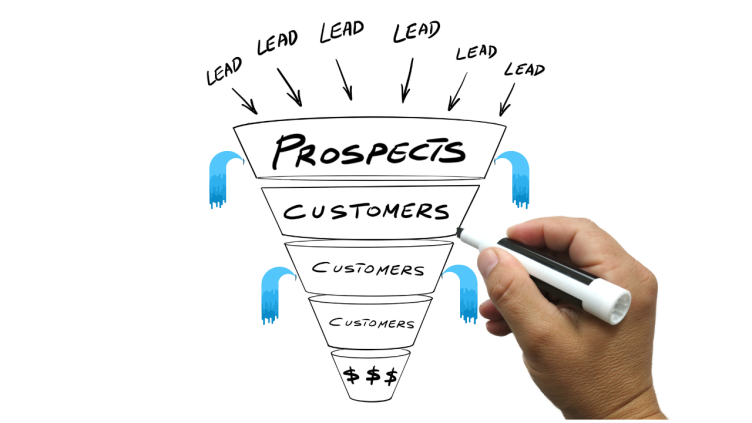

Duplicate contacts in HubSpot aren’t just a minor nuisance, they’re a silent growth killer. Every duplicate record chips away at your reporting accuracy, wastes your team’s time, and erodes the customer experience. In RevOps, the old adage “Garbage In, Garbage Out” isn’t just a saying, it’s a warning: if your data is messy, every decision built on it is compromised.
For RevOps, Sales Ops, and technical leaders at scaling SaaS companies, duplicates can become a strategic problem. They sabotage forecasting, misalign marketing campaigns, frustrate sales reps, and ultimately put revenue at risk.
This guide goes beyond the typical 'cleanup tips' to help you fix duplicates in HubSpot for good. You’ll get a structured approach to identify the root causes of duplicates, resolve existing data issues efficiently, and implement preventive measures so your HubSpot instance runs like a lean, reliable RevOps engine. By the end, you’ll have a blueprint not just for cleaner data, but for a flawless, actionable system that supports growth instead of slowing it down.

The True Cost: Why Duplicate Data Cripples Scaling SaaS Companies
Duplicate contacts in HubSpot create hidden revenue loss. Every repeated or fragmented record distorts your view of the business, driving wasted marketing spend, misaligned sales efforts, and poor customer experiences. In fact, industry research shows that bad data costs companies an average of $15 million per year in lost revenue, inefficiencies, and missed opportunities.
For scaling SaaS companies, the financial consequences are particularly severe. Duplicates inflate acquisition costs, understate customer value, and hide early warning signs of churn. Left unchecked, they don’t just slow growth, they actively sabotage it.
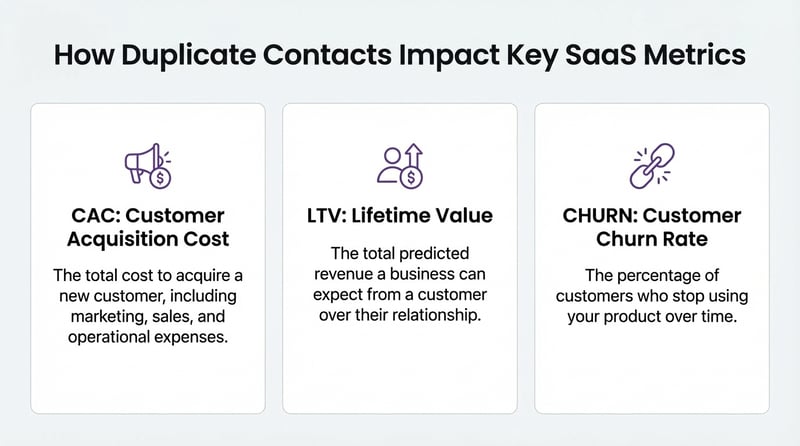
How Duplicates Skew Core SaaS Metrics (CAC, LTV, Churn)
Customer Acquisition Cost (CAC)
Duplicate leads make your marketing reports look cleaner than reality, but at a hidden cost. When the same prospect exists multiple times in your database, marketing campaigns are over-counted, ad spend is wasted, and your team draws false conclusions about which channels and campaigns are truly efficient.
Lifetime Value (LTV)
A fragmented customer view across duplicate records prevents accurate tracking of upsells, renewals, and cross-sells. As a result, LTV is under-represented, leading to misinformed revenue projections and missed growth opportunities.
Churn
Multiple records for the same customer create overlapping or conflicting communications, inconsistent support experiences, and general frustration. These disjointed touchpoints directly increase the risk of churn, eroding long-term revenue and trust.
The Impact on Sales & Marketing Alignment and Reporting
Duplicate contacts wreak havoc on operational efficiency and team alignment. When the same lead exists multiple times in HubSpot, lead routing can send one prospect to multiple reps, triggering confusion, duplicate outreach, and even territory disputes. Meanwhile, marketing attribution breaks down, engagement data scattered across duplicates makes it nearly impossible to know which campaigns are driving results. The fallout doesn’t stop there: pipeline reporting becomes unreliable, as duplicate deals or contacts inflate forecasts, leaving leadership with a misleading picture of revenue performance and growth opportunities.
Degrading the Customer Experience and Brand Trust
For your customers, duplicate data isn’t a “backend problem”, it’s a front-line frustration. Imagine receiving the same marketing email three times, or being contacted by a sales rep as a “new lead” despite being a long-time customer. These experiences signal disorganization and a lack of care, undermining trust. Over time, repeated missteps like these erode brand loyalty, leaving customers questioning whether your company values their time, attention, or relationship. In a world where customer experience is a key differentiator, duplicates don’t just create minor inconvenience, they actively harm your reputation and long-term growth.
Understanding HubSpot’s Native Deduplication Capabilities (and Limitations)
Before diving into advanced strategies for managing duplicates, every HubSpot power user needs a solid understanding of what the platform does automatically, and where it falls short. HubSpot provides built-in deduplication features that catch many common cases, but relying solely on these “out-of-the-box” tools is not enough for scaling SaaS companies with complex data flows. Understanding these capabilities is the foundation for building a cleaner, more reliable CRM and preventing duplicates before they multiply.
Automatic Deduplication: Contacts by Email & Companies by Domain
HubSpot uses primary unique identifiers to automatically prevent many duplicates:
- Contacts: The primary identifier is the email address.
- Companies: The primary identifier is the Company Domain Name property.
These identifiers are checked automatically during key actions:
- Form Submissions: If a contact submits a form with an email that already exists in HubSpot, the system updates the existing record rather than creating a new one.
- Manual Creation: When a user attempts to create a new contact or company, HubSpot checks for existing email addresses or domains to prevent duplication.
- Data Imports: During CSV or integration imports, HubSpot scans for matching emails (contacts) or domains (companies) and prompts users to update existing records instead of creating duplicates.
While these mechanisms handle the majority of basic duplicates, they cannot catch all scenarios, such as: multiple emails for one customer, typos, variations in company domains, or legacy records imported without proper identifiers. Recognizing these limitations is key before implementing more advanced deduplication and prevention strategies.
The Role of Unique Identifiers: Record ID and Custom Properties
HubSpot’s Record ID is the underlying key that ensures imports and updates target the correct record. Unlike visible fields such as email or name, the Record ID is a system-generated unique identifier for every contact, company, or deal. When importing data, referencing the Record ID ensures that existing records are updated rather than duplicated, making it critical for accurate data management at scale.
For more advanced use cases, especially integrations with external systems, HubSpot also allows the creation of custom properties with unique values. For example, assigning a product user ID as a unique property ensures that each external system record maps precisely to a single HubSpot record, preventing duplicates even when standard identifiers like email or domain are missing or inconsistent.
Where Native Tools Fall Short: Common Scaling Challenges
While HubSpot’s built-in deduplication features are effective for basic scenarios, scaling SaaS companies quickly encounter limitations:
- No Fuzzy Matching: HubSpot cannot automatically detect variations such as “Bob” vs. “Robert” or “Acme Inc.” vs. “ACME, Inc.”
- Display Limits: The Manage Duplicates tool only shows up to 2,000–5,000 potential duplicate pairs at a time, making it cumbersome for large databases.
- Manual Process: Merging duplicates often requires manual review and cannot be fully automated through standard workflows, which consumes valuable RevOps time.
- Complex Data Scenarios: Multiple emails, inconsistent formatting, or records originating from different sources can bypass native checks, creating hidden duplicates that accumulate over time.
What about Data Hub?
HubSpot’s Data Hub introduces a centralized data quality layer, allowing teams to monitor duplicates, formatting issues, and missing data from a single interface. It also enables automation to enforce property standards and reduce the risk of duplicate creation.
However, it’s important to distinguish between data quality management and true deduplication. While Data Hub improves visibility and prevention, it does not introduce advanced duplicate detection (such as fuzzy matching) or fully automated merging for complex scenarios.
The Cleanup Phase: A Step-by-Step Guide to Fixing Existing Duplicates
Cleaning up duplicate records in HubSpot doesn’t have to be overwhelming. By following a structured process, RevOps teams can systematically identify, review, and merge duplicates while maintaining data integrity. Using HubSpot’s Manage Duplicates tool is the foundation of this process.
Sound familiar? Let's audit your HubSpot setup together. Book a free 30-minute data health call and find out exactly where your duplicates are coming from.
Using the 'Manage Duplicates' Tool: A Walkthrough
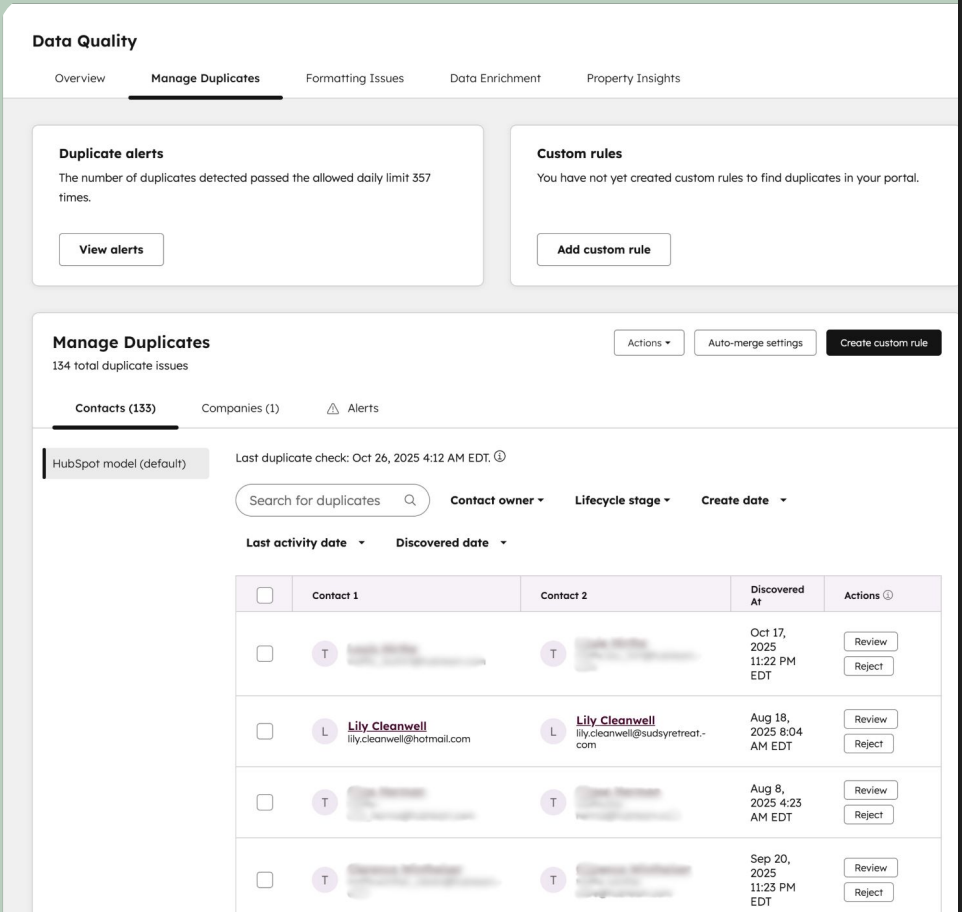
If you're wondering how to start finding duplicates in HubSpot, the Manage Duplicates tool is your primary entry point. If you're using Data Hub, you can also access duplicate detection directly from the Data Quality tool, which provides a centralized view of duplicates, formatting issues, and missing data.
Follow these steps to find and resolve duplicates in HubSpot:
- Navigate to the Tool:
- In your HubSpot account, go to Contacts > Contacts (or Companies > Companies)
- Click on Actions > Manage duplicates.
- Review Suggested Duplicates:
- HubSpot automatically generates a list of potential duplicate pairs based on unique identifiers (email for contacts, domain for companies).
- Each pair is presented side-by-side for review.
- Compare Records:
- Examine key properties (name, email, company, lifecycle stage, deal associations, and custom properties) to confirm whether they are duplicates.
- Take note of which record has the most complete and up-to-date information.
- Choose an Action:
- Merge: Combines two records into one. All activity, notes, and associations from the secondary record are transferred to the primary record. Use this to consolidate verified duplicates.
- Reject: Marks the pair as not a duplicate. This pair will not be suggested again in future Manage Duplicates sessions, preventing wasted review cycles.
- Repeat and Monitor:
- Continue through the list until all suggested duplicates are addressed.
- After the initial cleanup, set a regular cadence for reviewing duplicates to prevent them from accumulating again.
Tip: Use screenshots and property comparisons to guide your team visually and reduce errors during merges.
HubSpot Merge Duplicates at Scale: Understanding Bulk Merge Criteria
For teams dealing with large datasets, manually merging duplicates one pair at a time quickly becomes inefficient. HubSpot addresses this with bulk merge capabilities available in paid tiers, particularly Data Hub, which allow RevOps teams to consolidate multiple duplicate records based on predefined criteria.
Bulk merging works by automatically selecting a master record while merging the remaining duplicates into it. Choosing the right merge criterion is critical, because the master record determines which values are preserved when conflicts occur.
Below is a comparison of the most common bulk merge criteria and when to use them:
|
Criterion |
What it does |
Best for… |
|
Created first |
Selects the oldest record as the primary record during the merge. |
Maintaining historical continuity and preserving the earliest CRM entry. |
|
Created most recently |
Chooses the newest record as the primary record. |
Cases where newer records contain more complete or updated data. |
|
Most recent engagement |
Selects the record with the latest interaction (email, call, meeting, etc.). |
Sales-driven environments where the most active record likely reflects the current customer relationship. |
|
Most recently updated |
Uses the record with the most recent property updates as the master record. |
Databases where automation or integrations frequently refresh key properties. |
|
Oldest engagement |
Selects the record with the earliest recorded interaction. |
Best for preserving the original customer history or when initial touchpoints are critical for analysis. |
Selecting the appropriate merge rule ensures that valuable engagement history and accurate data are preserved, while redundant records are safely consolidated.
Best Practices for Deduplication During Data Imports
Imports are one of the most common sources of duplicate records in HubSpot. Without proper preparation, even a well-maintained CRM can quickly accumulate duplicates after a large import. To prevent this, RevOps teams should treat every import as a controlled data operation.
Pre-Import Data Cleaning Checklist
Before uploading any file into HubSpot, follow this checklist:
- Sanitize your spreadsheet first
Remove obvious duplicates, empty rows, and inconsistent entries directly in your spreadsheet. - Standardize formatting
Ensure consistent formatting for emails, company domains, phone numbers, and names to avoid records slipping past HubSpot’s deduplication checks. - Always include a unique identifier
When updating existing records, use a unique identifier to ensure HubSpot updates the correct record rather than creating a new one. In most cases, this will be the email (for contacts) or company domain. For more advanced use cases, you can use the Record ID, though this requires exporting existing data first. - Double-check column mapping
During the import process, carefully review how each column maps to HubSpot properties. Incorrect mapping can create new records instead of updating existing ones. - Cross-check with HubSpot data before importing
Export relevant records from HubSpot and use spreadsheet functions such as VLOOKUP (or similar lookup tools) to detect duplicates between your import file and existing CRM data.
Taking a few minutes to perform this pre-import validation can prevent hundreds, or thousands, of duplicates from entering your system in the first place, saving significant cleanup effort later.
Beyond Cleanup: A Proactive Framework for Preventing Duplicates
Cleaning up duplicates is necessary, but it’s reactive. The real win comes from shifting to proactive data governance, preventing duplicates before they enter your system. Not only is this approach cheaper and faster than repeated cleanups, it also protects reporting accuracy, improves sales and marketing efficiency, and enhances the customer experience.
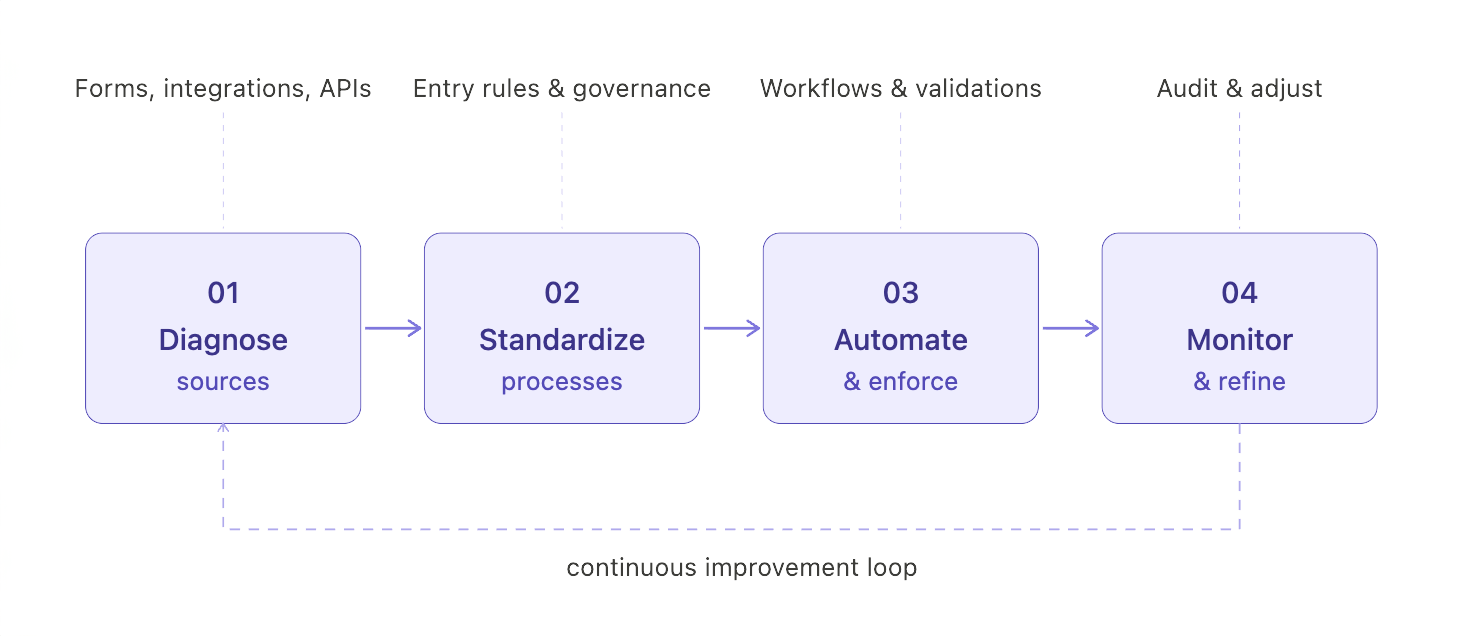
A simple 4-step prevention framework helps scaling SaaS companies maintain a clean HubSpot instance:
- Diagnose Sources – Identify where duplicates originate (forms, integrations, APIs).
- Standardize Processes – Implement consistent data entry standards across teams and tools.
- Automate & Enforce – Use workflows, validations, smart forms, and third-party tools (e.g., Koalify, Insycle) to prevent and automatically resolve duplicate creation.
- Monitor & Refine – Continuously track duplicates, audit your data, and adjust processes as your tech stack evolves.
Root Cause Analysis for Your Tech Stack (Forms, Integrations, APIs)
Every point of data entry is a potential duplicate risk:
- Forms:
- Standardize field names and required inputs across all forms.
- Use dependent fields and smart forms to enrich existing contacts instead of creating new ones.
- Validate emails in real-time to avoid duplicate submissions.
- Integrations:
- Ensure proper field mapping, particularly for tools like Salesforce, to prevent mismatched records.
- Understand the sync logic: know whether updates overwrite data or create new records.
- Regularly audit integration logs for duplicates.
Pro tip (Salesforce integrations):
If Salesforce is your source of truth for companies, consider disabling automatic company creation in HubSpot (e.g., associating companies based on email domain). This helps prevent duplicate or conflicting company records across systems. - APIs:
- In SaaS scenarios, product signups can create duplicates of existing marketing leads.
- Implement a pre-check in your API workflow to see if a contact with the same email already exists before creating a new record.
- Consider logging duplicates to a queue for review rather than automatic creation.
Establishing Data Entry Standards and Governance Policies
Preventing duplicates requires consistent rules and accountability. Example standards include:
- Use dropdowns for states/countries instead of free-text or abbreviations.
- Standardize company names (e.g., “Acme, Inc.” vs “ACME Inc”).
- Enforce lowercase for email addresses before import.
- Require all critical fields (email, phone, company domain) for new contacts.
- Limit free-text fields where possible; use dropdowns or controlled options.
To make these standards stick:
- Upload documentation to Breeze FAQ so teams can reference it and get answers instantly.
- Provide training and refresher sessions regularly.
- Assign accountability owners for data quality, ensuring policies are enforced consistently.
With these measures, duplicates are no longer a recurring headache, they become a managed, measurable risk in your HubSpot instance.
When to Upgrade: Evaluating Data Hub and Third-Party Tools
For teams that have outgrown HubSpot’s native deduplication tools, upgrading or adding specialized solutions can save significant time and reduce errors.
- Data Hub (Professional/Enterprise):
- Offers data quality automation to enforce property formatting and prevent duplicates.
- Supports programmable automation, allowing custom workflows to deduplicate records at scale.
- Third-Party Tools (e.g., Insycle, Dedupely, Koalify):
- Provide advanced fuzzy matching to catch typos, name variations, and complex duplicates that HubSpot alone can’t detect.
- Automate bulk merges and maintain historical audit logs for compliance and reporting.
|
Challenge |
Native Tool |
Data Hub |
Third-Party Tool |
|
Simple duplicate contacts |
✅ Email/domain match |
✅ Automated property enforcement |
✅ Fuzzy matching, bulk merge |
|
Large-scale deduplication |
⚠ Manual only |
✅ Workflow-based merge |
✅ Automated bulk dedupes |
|
Complex variations (e.g., Bob vs. Robert) |
❌ Not supported |
⚠ Limited |
✅ Full fuzzy matching |
|
Ongoing governance |
⚠ Manual audits |
✅ Rules & automation |
✅ Rules + automated audits & reports |
Solving Advanced Duplicate Scenarios for Technical Teams
This section dives into complex HubSpot deduplication scenarios that go beyond contacts and companies. It’s geared for experienced admins and RevOps professionals, providing precise, technical solutions to maintain a clean, scalable CRM.
How to Handle Duplicate Deals (A Common HubSpot Blind Spot)
Duplicate deals in HubSpot are a common blind spot since the platform has no native tool to detect them automatically. Without intervention, duplicate deals can distort pipeline forecasts and reporting.
Manual workaround:
- Build a custom report or active list filtering for:
- Deals with the same associated company
- Same deal name
- Same deal amount
- Created in the same week
- Review the results manually and merge duplicates or archive redundant deals.
Pro tip: Third-party data quality tools can automate this process, providing bulk detection and merge capabilities, saving significant time for large sales teams.
Troubleshooting Import Errors: The 'DUPLICATE_ALTERNATE_ID' Case
When you see the DUPLICATE_ALTERNATE_ID error during an import, it means:
You are trying to import multiple companies with the same unique identifier (usually the Company Domain) in a single file.
Direct solution:
- Clean the import file by removing duplicate rows or ensuring each company has a unique identifier before uploading.
Advanced scenario: For organizations like school districts where multiple entities share the same domain:
- Use HubSpot’s Parent-Child company relationships.
- Create a Parent company record with the shared domain and link individual entities as Child companies to avoid conflicts and preserve hierarchy.
This approach ensures data integrity and prevents recurring import errors, while supporting accurate reporting across complex organizational structures.
Managing Duplicates Within Custom Objects
Many scaling SaaS companies rely on custom objects in HubSpot to track product data, subscriptions, or other unique business entities. Unlike contacts or companies, HubSpot does not provide an automated deduplication tool for custom objects.
To prevent duplicates from the start:
- Define a custom property with a unique value, such as Subscription ID or License Key, when creating the object.
- Use this unique identifier for programmatic updates via the API or import operations, ensuring that each record remains distinct.
While it requires deliberate setup, this approach is the key to maintaining clean, reliable custom object data as your business scales.
From Data Janitor to Data Strategist: Owning Your HubSpot Data Quality
Effective data management is no longer just a cleanup task, it’s a strategic function that powers smarter decisions, higher revenue, and better customer experiences.
Throughout this guide, we’ve covered the pillars of strong data management:
- Understanding the business cost – Duplicates silently erode ROI, inflate CAC, and skew reporting.
- Mastering cleanup tools – Using HubSpot’s Manage Duplicates, bulk merge options, and import best practices.
- Building a proactive prevention framework – Standardizing processes, implementing governance, and monitoring continuously.
By taking ownership of your HubSpot data, you move from reactive janitor work to strategic data stewardship, ensuring your CRM fuels growth rather than holding it back.
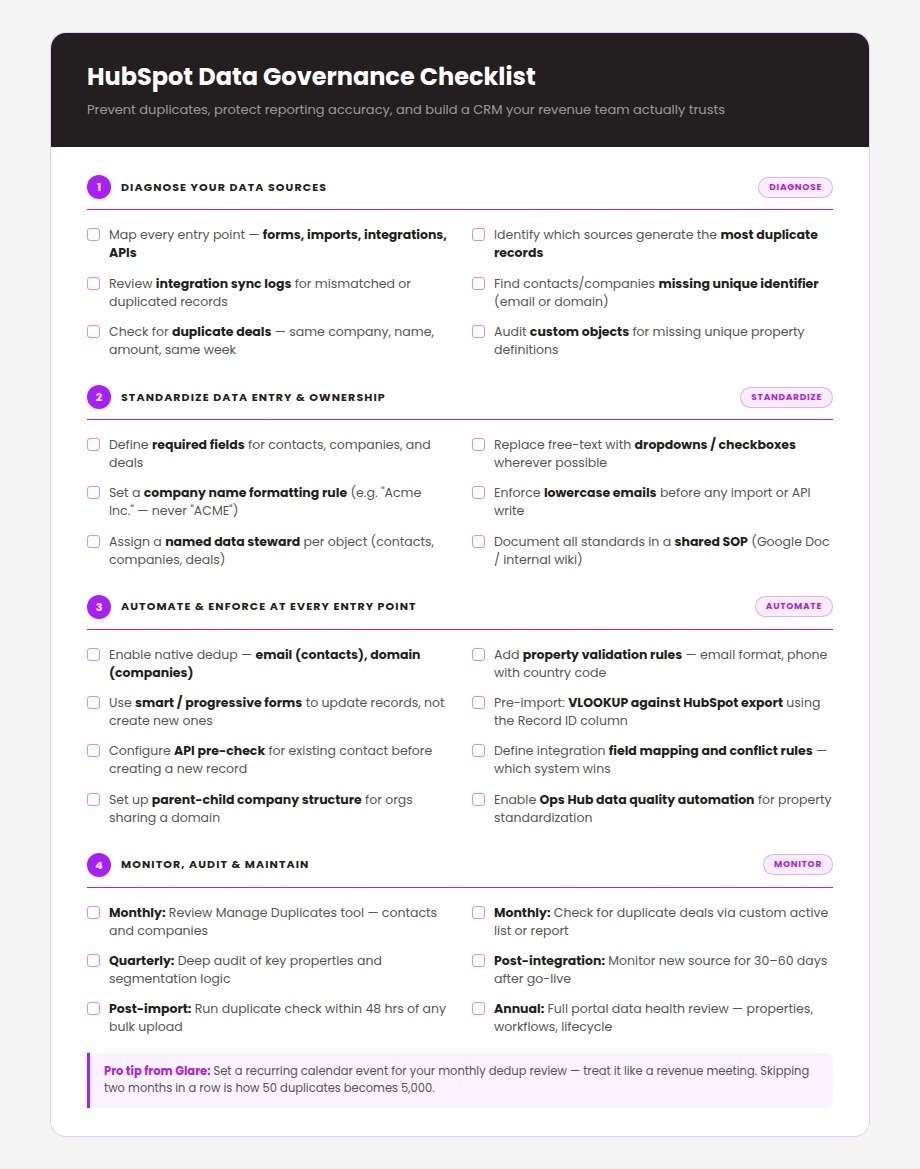
Download our Data Governance Checklist to implement these best practices in your team today.
Ready to take control of your HubSpot data?
Frequently Asked Questions
How do I manage duplicates in HubSpot?
Effective duplicate management is two-fold:
- Reactive Cleanup: Use the Manage Duplicates tool to identify, compare, and merge duplicate contacts and companies.
- Proactive Prevention: Implement a prevention framework including standardized data entry, integration checks, and ongoing monitoring.
How can I find all duplicates in HubSpot?
The primary method for finding duplicates in HubSpot is the Manage Duplicates tool under Actions in the Contacts or Companies dashboard.
- Limitations include:
- Only exact matches on key identifiers are detected (Email for contacts, Company Domain Name for companies).
- Display limits for duplicate pairs (2,000–5,000 per session).
- For other objects like Deals, you must create custom reports or active lists to manually identify potential duplicates (see the Advanced Scenarios section).
What is the best way to prevent duplicate contacts in HubSpot?
Prevention requires a comprehensive data governance strategy:
- Establish firm data entry standards for your team.
- Clean and standardize data before imports.
- Configure API integrations to check for existing records before creating new ones.
No single trick or tool replaces a structured, proactive approach.
Why doesn't HubSpot find all my duplicates?
HubSpot’s native tool primarily looks for exact matches on unique identifiers:
- Email for contacts
- Company Domain Name for companies
It does not support fuzzy matching (e.g., Bob Smith vs. Robert Smith) and cannot cross-reference multiple non-unique fields like phone numbers or secondary emails. This is why scaling teams often rely on Data Hub or third-party tools for advanced duplicate detection.
Can I automatically merge duplicates in HubSpot?
- Standard HubSpot workflows cannot automatically merge records.
- Data Hub (paid) includes data quality automation for scheduled cleanup and property standardization.
- Several third-party applications (Insycle, Dedupely) provide fully automated deduplication integrated with HubSpot.
How does HubSpot merge duplicate records?
- Activities consolidation: Emails, notes, calls, and other interactions from all duplicates are combined into a single timeline.
- Property resolution: Values from the primary/master record are retained; for many fields, HubSpot defaults to the most recent value.
- Best practice: Carefully select the master record during manual merges to preserve the most accurate and complete data.